Do you want to track exactly what users are doing on your website and optimize your ads for real results? If so, you’re in the right place.
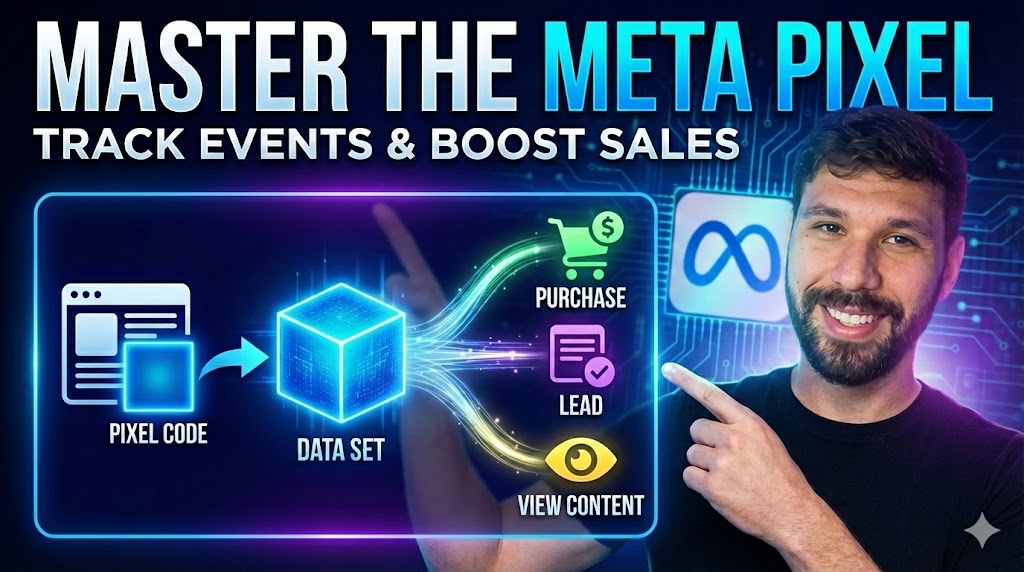
Today, we are diving into the Meta Pixel (now technically called a Data Set). Think of this as your analytics super-tool. It allows you to:
- Measure Results: See if people are actually buying, donating, or signing up.
- Optimize Ads: Show your ads to people most likely to take action.
- Build Audiences: Retarget people who visited specific pages on your site.
Here is the complete guide to creating, installing, and mastering the Pixel.
Part 1: Creating Your Data Set (The New Pixel)
First, a quick update: Meta has rebranded “Pixels” to “Data Sets” in the backend. It works the same way, just a different name.
- Go to https://business.facebook.com/ and select your Business Manager.
- Click the three lines (hamburger menu) and select Business Settings.
- Navigate to Data Sources > Data Sets.
- Click the blue Add button, name your pixel, and create it.
The “Bureaucracy” Check (Don’t Skip This!)
Meta requires you to explicitly grant permission to use the pixel you just made.
- Add People: Click “Add People,” select yourself (or your media buyer), and toggle on Full Control.
- Add Assets: Click “Add Assets,” select your Ad Account, and click Add.
- If you don’t do this, your ad account won’t be able to “see” the pixel.
Part 2: Installing the Pixel (The WordPress Method)
There are a few ways to install the code (API, Manual, App, Offline), but Meta currently pushes the Conversion API as the most accurate method. Here is how to do it easily on WordPress:
- In Business Settings, click the three lines and go to Events Manager.
- Make sure you are in the correct Business Account (check the top right dropdown).
- Click on Data Sources (the icon on the left).
- Select Set up Conversion API.
- Choose Setup with Partner Integration and select WordPress.
- The Plugin: Go to your WordPress site and install the plugin named “Meta Pixel for WordPress” (formerly Facebook Pixel).
- Activate the plugin and follow the on-screen prompts to connect your Business Manager and Ad Account.
Part 3: Verify It’s Working
Before you celebrate, you need to test if the data is flowing.
Method A: Events Manager
- Go to the Test Events tab in Events Manager.
- Select “Confirm your website’s events are set up correctly.”
- Enter your website URL and click Open Website.
- Go back to the Events Manager tab—you should see a “Page View” event appear in real-time.
Method B: Chrome Extension Install the Facebook Pixel Helper plugin for Chrome. When you visit your site, click the plugin icon. If it turns blue and lists “Page View,” you are live!
Part 4: Setting Up Events (Leads, Purchases, Buttons)
A “Page View” is nice, but we want to track money and leads. Here are three ways to do it.
1. The Manual Way (Code)
If you are comfortable with code, you can copy the specific event script (e.g., for “Leads”) and paste it into the <head> section of a specific page, like your “Thank You” page.
2. The Event Setup Tool (Easiest for Beginners)
This tool lets you click on things to track them without coding.
- In Events Manager, go to Settings > Open Event Setup Tool.
- Enter your website URL.
- Track a URL: Click “Track a URL” to fire an event when someone lands on a specific page (e.g., set your
/thank-youpage as a Lead event). - Track a Button: Click “Track New Button,” highlight a specific button (like “Add to Cart”), and assign an event to it.
3. Custom Conversions (For Custom Names)
If you want to name your own events (e.g., “Viewed Services Page”):
- Go to Custom Conversions in the left menu.
- Click Create Custom Conversion.
- Name your event.
- Set the Rule: URL contains “services”.
- Click Create.
Summary
You now have a fully functional Data Set that tracks page views, button clicks, and specific URL visits. You are no longer guessing; you are measuring.
Need help setting this up? If this feels too technical, or if you want an expert to handle your tracking and ads, check out my services page (link in description) or drop a comment below.
CLICK BELOW TO SEE SOME AD ACCOUNTS I MANAGED
Showcasing Results: How My Managed Ad Accounts Exceed Expectations